Projects · Work orders
Work order management software that shows who approved what, and when
For service, assembly and construction companies. Plan jobs as tasks with quantities, dates and people, and record progress against the plan. Quantity overruns and manual closes wait for a responsible manager. Every change keeps its old and new value.
The problem today
Closed by accident, exceeded without approval, argued about at the invoice
Work gets closed by accident
One click or one overwritten cell marks a job as done. You find out when the client asks about the part nobody finished.
Quantities drift without approval
The crew installs what the site needs, not what the order says. The extra metres surface at invoicing, and nobody can show who agreed to them.
Disputes are settled from memory
Progress reaches the office in calls and chats, so the office guesses what the site knows. When the client questions what was done and when, you have recollections, not records.
Planning
Plan the job as tasks with quantities, dates and named people
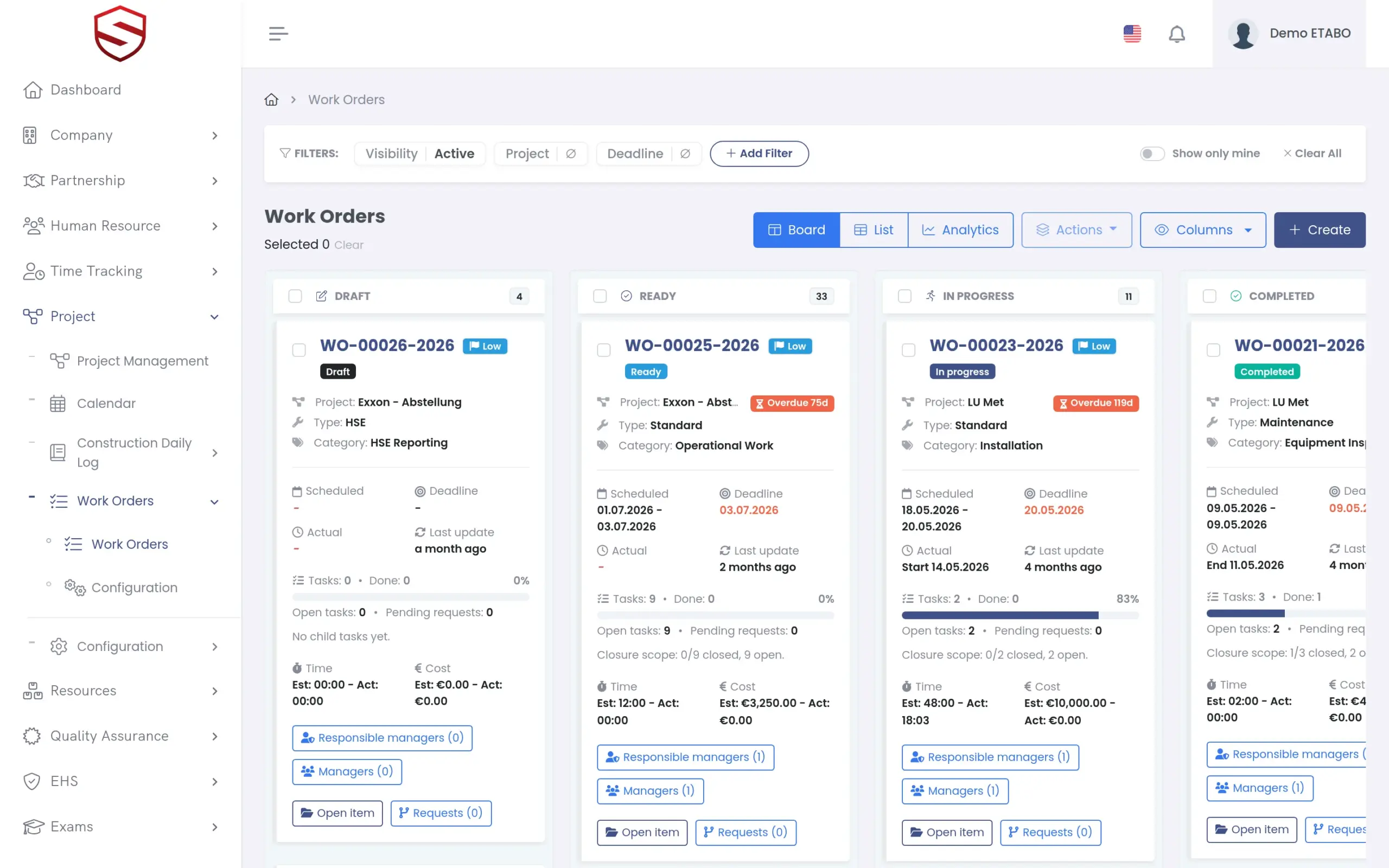
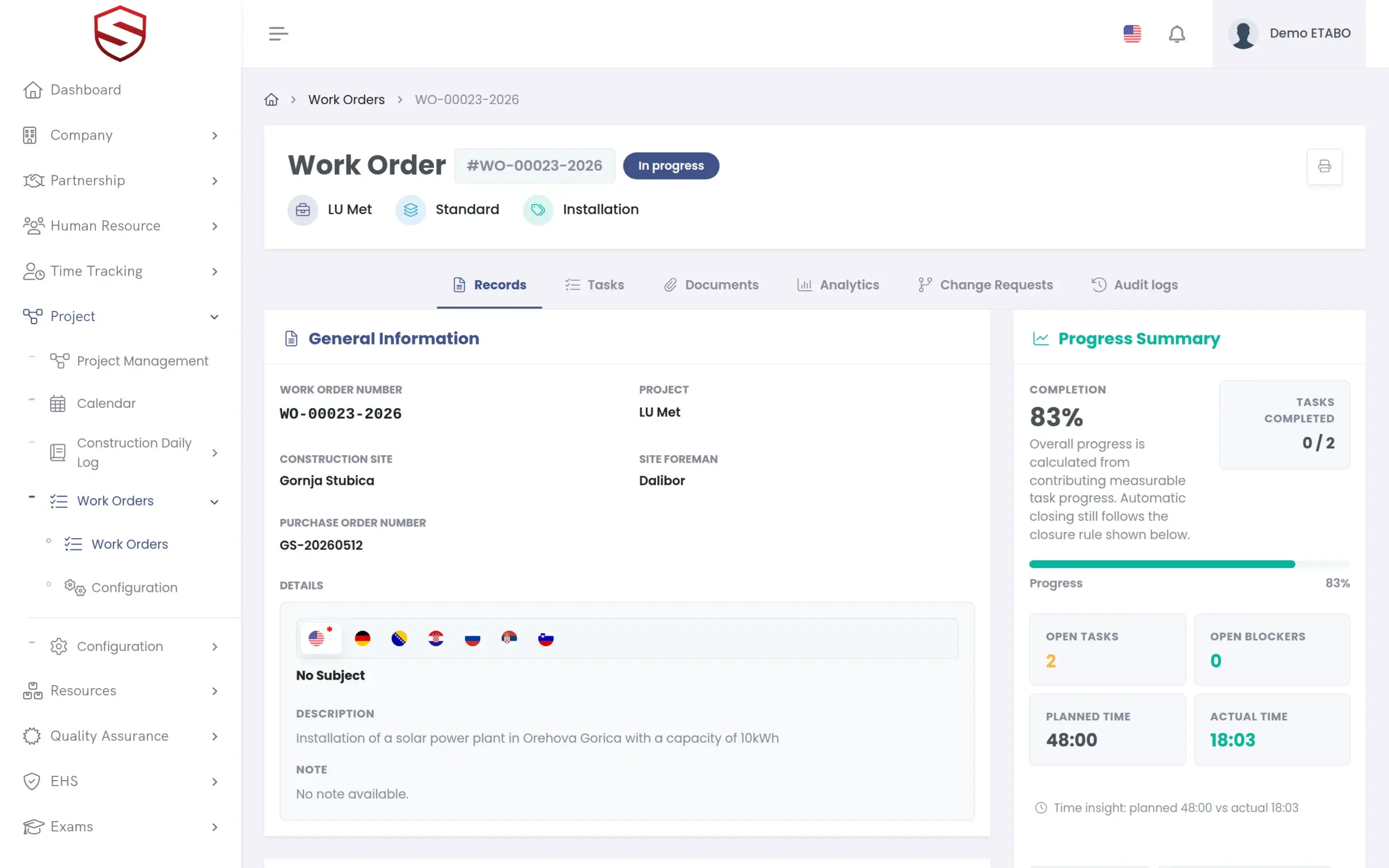
A work order belongs to a project and carries type, category, priority, scheduled dates, deadline and estimated time and cost. You split it into tasks, by hand or from templates, and name who answers for each.
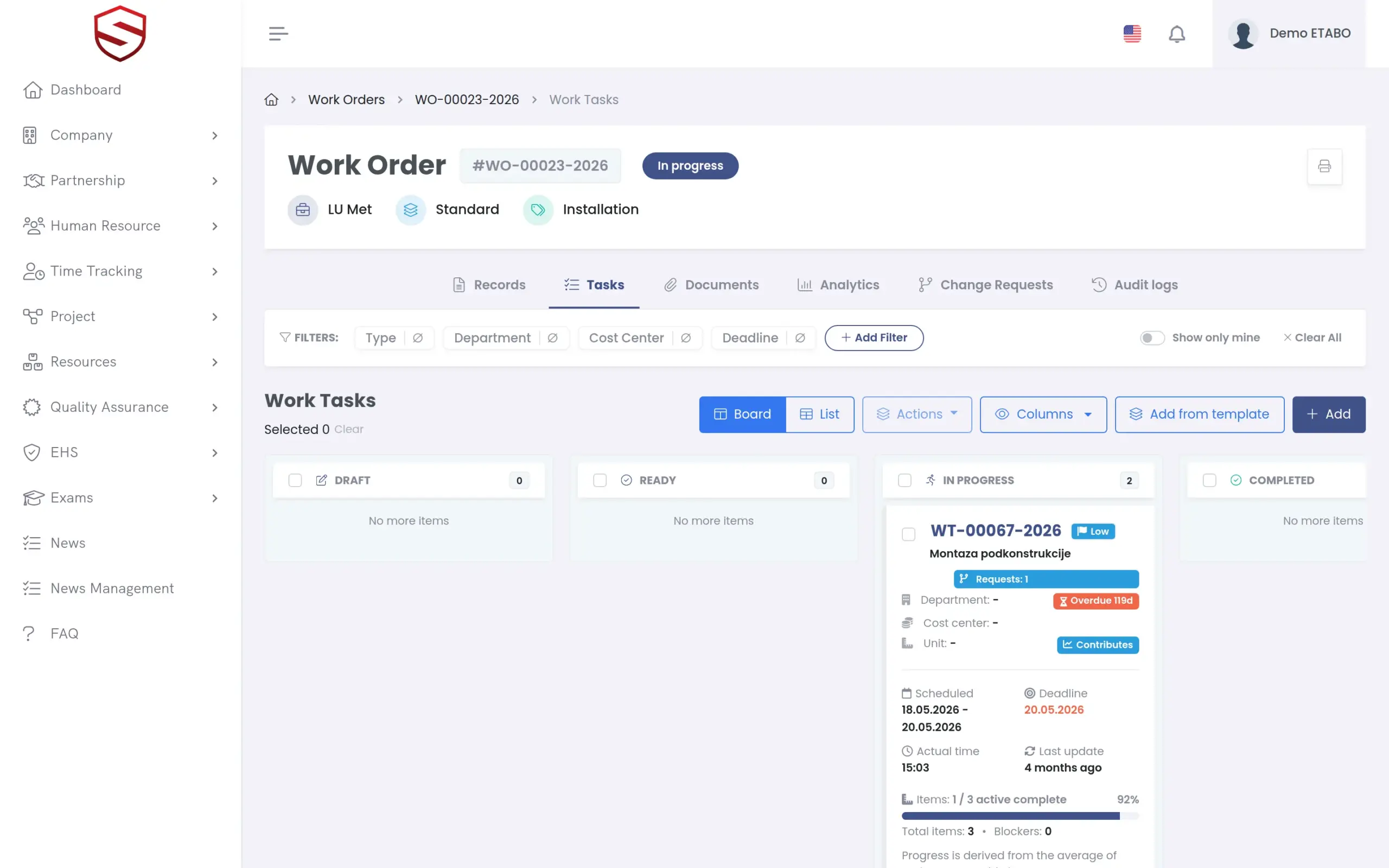
- Six task types: quantity, checklist, several measured items, yes/no, text and date
- Templates and group templates add standard tasks in one action
- Per task: a responsible manager approves, a manager runs it, progress reporters record
- Planned materials per task, reserved and approved by the resource manager
- From a signed-off risk assessment or an incident: one pre-filled task per selected measure
Status and blockers
Status follows the work, and every stop has a reason on record
Once you release an order, the work drives the status. The first progress entry moves task and order to In Progress. An open blocker puts the task On Hold. When the last contributing task completes, the order is Completed. It closes because the work is done, not because someone changed a field.
- Order statuses: Draft, Ready, In Progress, On Hold, Completed, Cancelled, Stopped and Manual Closed
- Stopping an order sets it to Stopped and every open task to Aborted
- In Progress and On Hold derive from task activity. Start and end are stamped automatically
- Blockers name why work stopped, with type, category and severity from Low to Critical
- A resolved blocker returns the task to its previous status. One you override is marked invalidated, not resolved
- Kanban board with drag between status columns, “Overdue” and “Due” chips and bulk archive
Progress and overruns
Extra quantities wait for a decision before they count
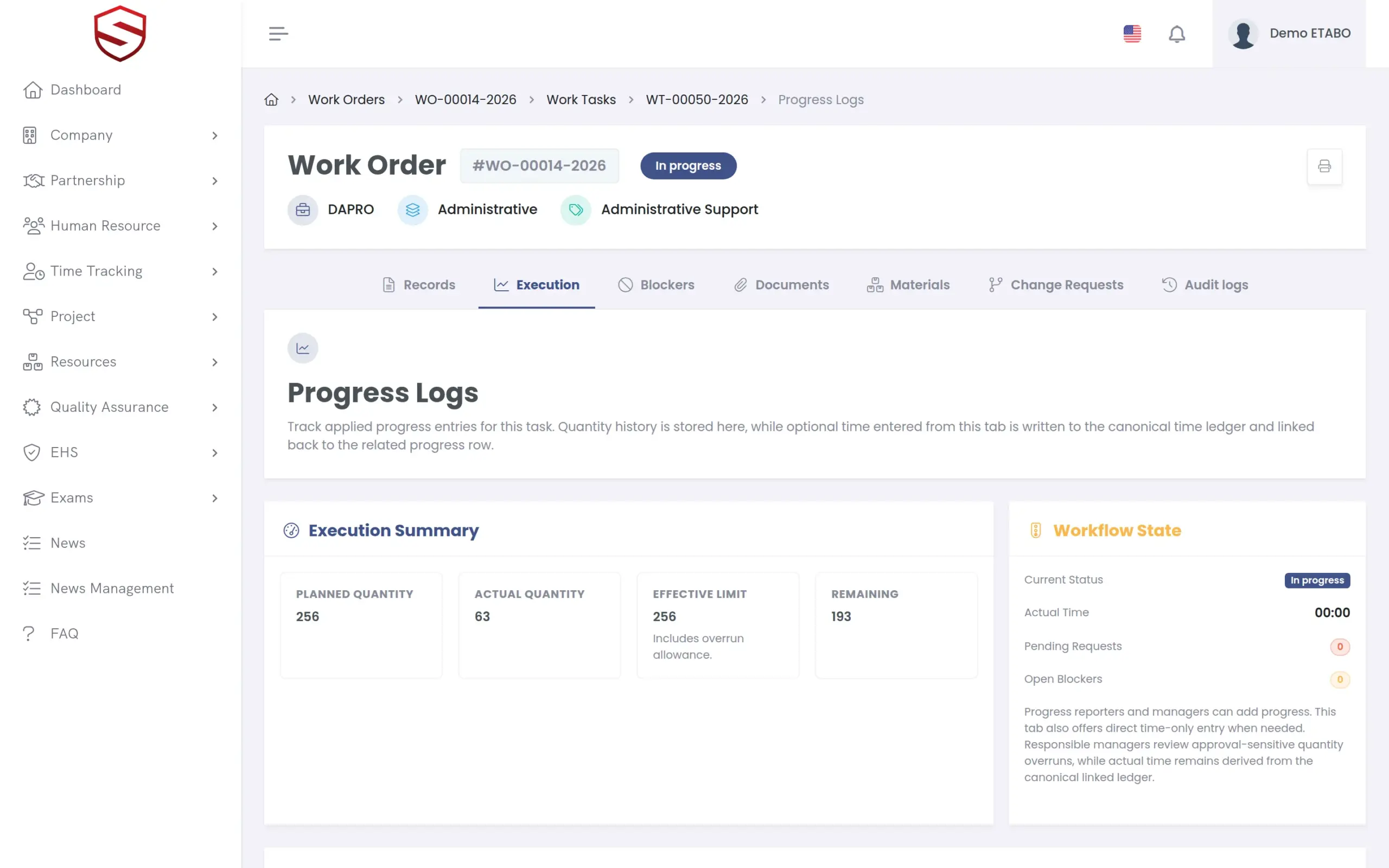
An entry that takes the total past the planned quantity plus its allowance does not count yet. It becomes a change request, and the totals stay unchanged until your responsible manager decides. That approval is internal, not the client’s. You hear about the extra metres the day they are logged, in time to take them to your client. Progress and time are ledgers: a correction adds a new row and cancels the old one, so nothing is overwritten.
- Progress and hours are logged on site: on the phone in the Soft-TLS mobile app (Android), or in any browser
- Progress Logs with Planned Quantity, Actual Quantity, Effective Limit and Remaining
- Per task: block overruns, allow them with a mandatory reason, or require approval (the default)
- Three reviewer outcomes: “Approve and close task”, “Approve and keep task in progress”, “Approve and open planning adjustment”
- “Close order manually” needs approval by default and closes every open task
Audit trail and evidence
Nothing is changed silently
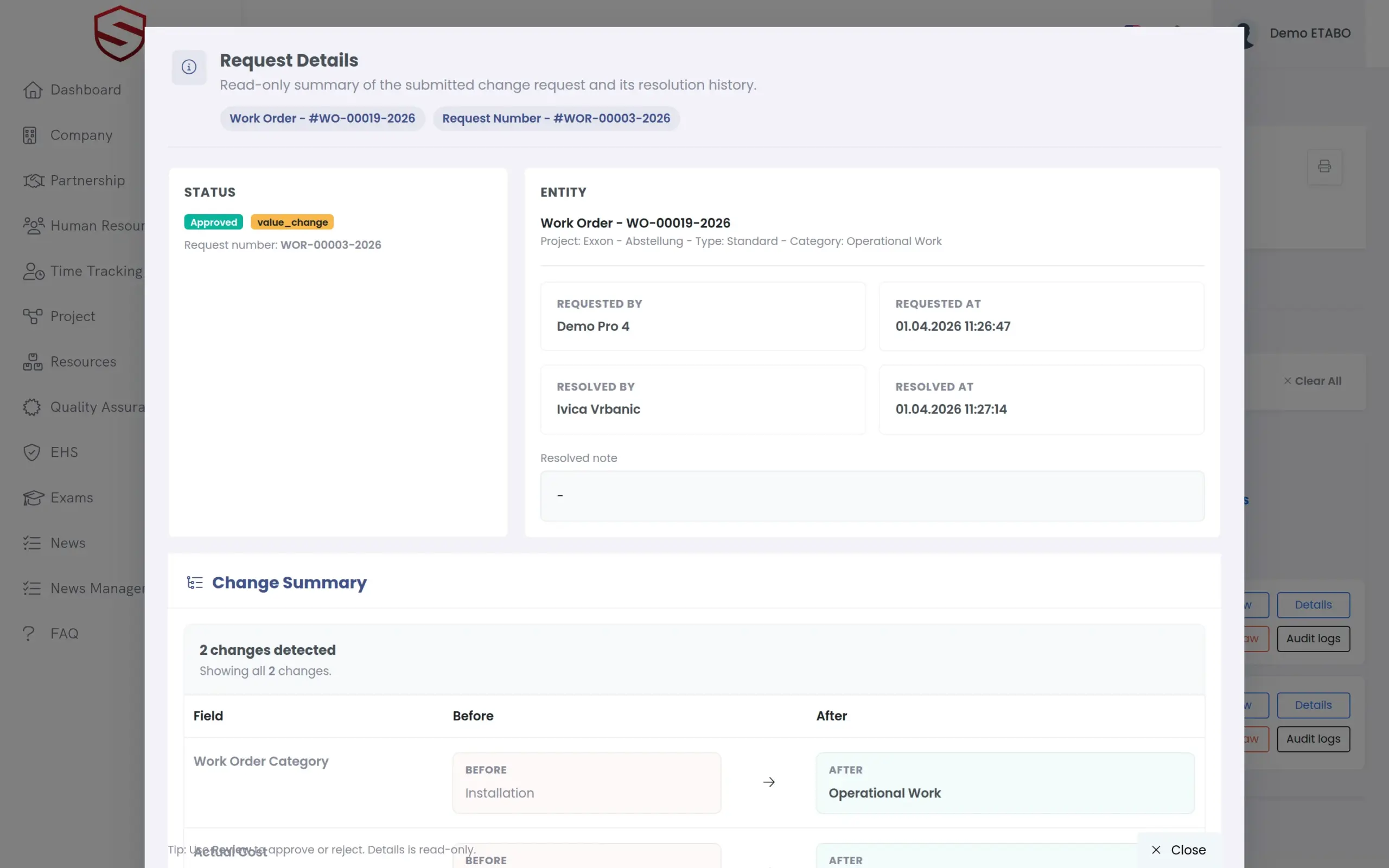
“Require change approval” is on by default. An edit becomes a change request, shown as an Old / New table per field with Added, Removed and Changed badges. The audit log separates more than 100 audit event types for orders and tasks, such as order closed manually or progress corrected, not a generic “updated”. When two people edit the same order, the second save is refused instead of overwriting the first.
- Change requests cover edits, status changes, manual closes, overruns, documents and progress corrections
- Documents on orders and tasks, with your own document types and reviewed changes
- Order PDF with tasks as None, Summary or Detailed, and bulk PDF for tasks
- Notifications when a request is created and decided
How it works
From request to closed order in six steps
- Create the order
Start from scratch, from templates or from a signed-off risk assessment. Set project, priority, dates and managers. - Release it
“Move to Ready” needs at least one manager and readies every draft task too. - Record the work
Progress reporters log quantities, checklist answers and time. The first entry moves the order to In Progress. - Name what stops you
Raise a blocker and the task goes On Hold. Resolve it and the work resumes where it was. - Decide the exceptions
A quantity overrun, an edit or a manual close becomes a change request. The responsible manager approves, or rejects with a note. - Close and print
The order completes with its last contributing task, or closes manually after approval. The PDF is your record.
What work order management includes
- Six task types, templates and group templates
- “My Work Tasks” for every progress reporter
- Kanban board with overdue, blocked and pending-request filters
- Append-only progress and time ledgers
- Approval for quantity overruns and manual closes
- Change Requests with Old / New values
- Blockers with type, category and severity
- Materials per task with reservation and usage
- Documents on orders and tasks
- Analytics per order and across orders
- PDF and Audit logs for orders and tasks
Works together with
Risk register and control measures
Planned measures from a signed-off risk assessment become a work order in one guided step, one task per selected measure. Nobody retypes them.
Projects, work orders and daily log
Every work order belongs to a project. The project shows people, hours, resources, documents and the status of all its orders in one place.
Site daily log
The dated record of the site day, from weather to waiting times, signed by site manager and client.
Frequently asked questions
Can a closed work order be changed?
No. Completed, Cancelled, Stopped and Manual Closed are final, and a closed order cannot be opened again. Changes belong before the close, as change requests while the order is open. Follow-up work is a new order in the same project.
Who approves a quantity overrun?
The task’s responsible manager. They see planned quantity, effective limit and the current and projected quantity, then pick one of three outcomes. Approval covers quantities only. Time is reported against the plan, cost is informational, and neither stops the work.
What can we show the client in a dispute?
The progress and time ledgers with dates, quantities, notes and corrections. The change requests with old and new values, and who approved each overrun with which outcome. The audit log of who did what and when. And the order as a PDF.
How do work orders relate to projects and time tracking?
Every work order belongs to a project. Time is logged on the task and rolls up to the order. Today that ledger is separate from attendance time tracking. Filling it automatically from clock-ins is on the roadmap. See time tracking.
How are materials and stock handled?
With the Resources module enabled, each task carries a planned materials list. The resource manager can reserve and approve quantities. Usage is recorded against the task, capped by the plan and by the stock on hand. See equipment and inventory.
Who can see and do what?
Two rights open the module: managing orders, and configuring types, categories and templates. Inside an order, your assignment decides. A responsible manager approves. A manager runs the task and submits requests. A progress reporter only records progress, answers and time on their own tasks. On site they can use the mobile app (Android), which shows the same screens as the browser.